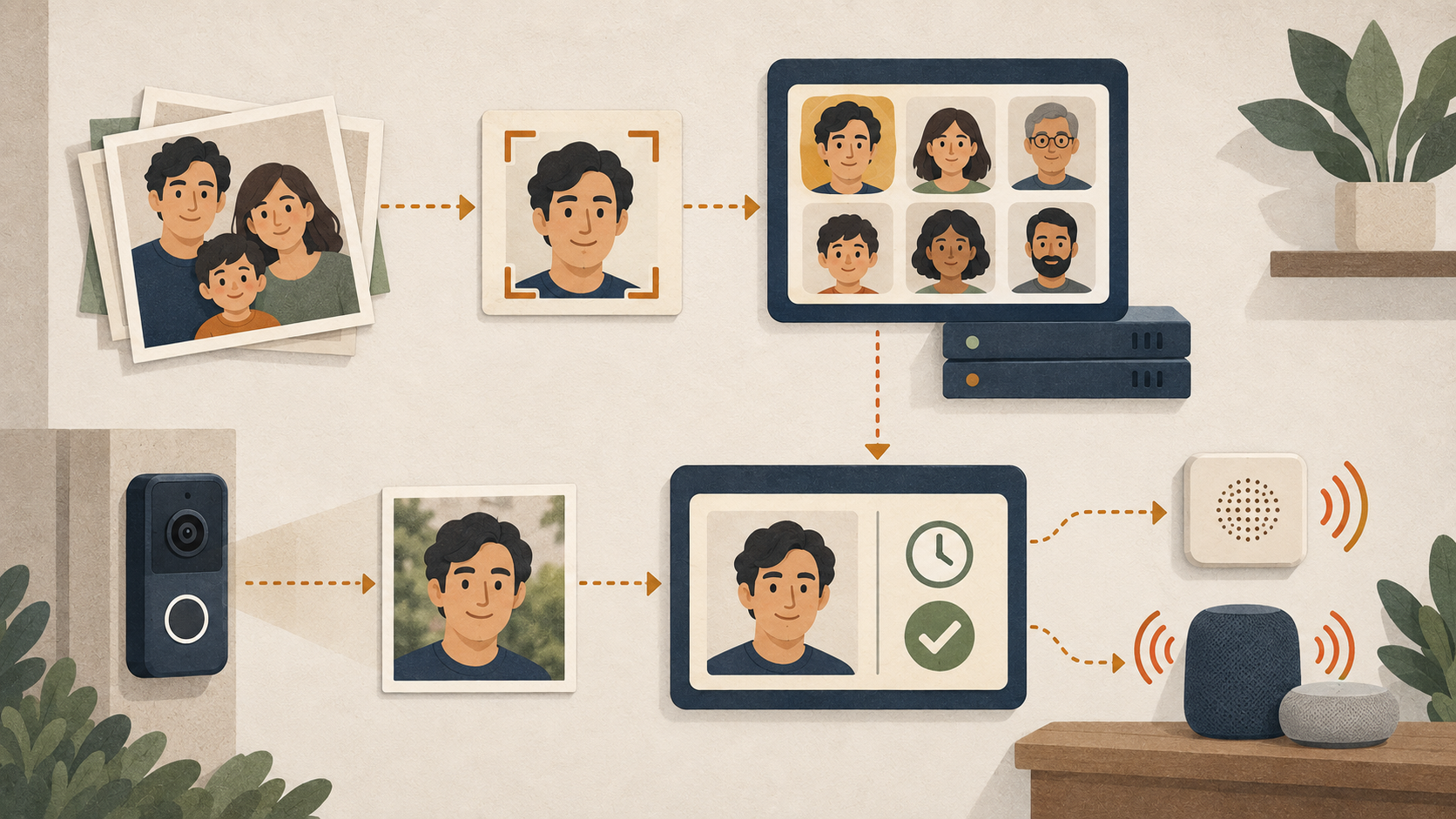
Building the Doorbell Greeting Workflow
This guide implements the configuration described in The Doorbell Knows Who You Are. When the UniFi G4 Doorbell Pro rings, Home Assistant uses a recent face match or requests recognition through CompreFace, plays a personalized greeting through the doorbell, and announces the arrival on the configured Sonos speakers and HomePods. Immich supplies the reference photographs from its labeled photo library, allowing initial enrollment to proceed without a separate session at the door.
Set up the workflow in this order:
- Deploy CompreFace and Double Take.
- Create a CompreFace application and recognition service, then configure Double Take with its API key.
- Enroll subjects from Immich by submitting face crops directly to CompreFace.
- Render and host the greeting clips.
- Configure Home Assistant with a REST command, two helpers, a shared announcement script, and two automations.
- Test recognition and playback, calibrate the thresholds, and consider the optional visitor descriptions and phone notifications.
I run the recognition services on an RKE2 Kubernetes cluster managed through ArgoCD, with secrets encrypted using SOPS. The examples follow that Kustomize-based arrangement; the same application containers can also be deployed through Docker Compose with the corresponding storage and configuration mounts. If you do not have Kubernetes, follow Running with Docker Compose, then continue with CompreFace provisioning and the Home Assistant setup. The optional description extension is discussed separately from the base automation examples.
Prerequisites
- UniFi Protect with a G4 Doorbell Pro and the Home Assistant UniFi Protect integration configured with a local Protect user. Verify the camera, person-detection sensor, ring event, and speaker entities in your installation. The examples use
camera.<doorbell>_high,binary_sensor.<doorbell>_person_detected,event.<doorbell>_doorbell, andmedia_player.<doorbell>_speaker; actual entity names and capabilities depend on the device and configuration. - Immich with face processing completed and the intended subjects named in its interface. Create an API key under Account Settings → API Keys with the access required for the training requests.
- Home Assistant with sufficient CPU and memory for its existing workload. My Home Assistant OS virtual machine performed adequately at 4 vCPU and 8 GB after struggling at 2 vCPU and 2 GB. Your resource requirements will depend on the other workloads running on the host.
- Speakers already exposed as working Home Assistant media players, with text-to-speech (TTS) playback tested. Sonos uses its dedicated integration. HomePods require a suitable playback integration or AirPlay path; HomeKit Bridge exposes Home Assistant entities to Apple Home and does not itself import HomePods as playback targets.
- An HTTP-accessible location for the MP3 files, reachable by the playback path. Home Assistant serves
/config/www/through/local/. I use an existing internal static-site host. - For the Kubernetes deployment shown here, internal DNS and TLS for the service endpoints. The examples use
*.internal.white.fmthrough an Envoy gateway; Split-Brain DNS for Internal HTTPS describes that arrangement. - A machine with
ffmpeg, plus macOS if you intend to generate the clips withsay.
Architecture
 G4 Doorbell Pro
   │ person detected ──────┐      ring ─────────┐
   │ snapshot              ▼                    ▼
   └──────────────►┌────────────────────────────────┐
                   │        Home Assistant          │
                   │  1. pre-warm + cache (person)  │
                   │  2. greet on ring              │
                   └──┬─────────────┬───────────┬───┘
     GET /api/recognize│             │           │ play_media
                      ▼             │           ▼
               ┌─────────────┐      │    doorbell speaker
               │ Double Take │      │    ◄── <name>.mp3
               └──────┬──────┘      │
                      ▼             │ announce (08:30–21:00)
               ┌─────────────┐      ▼
               │ CompreFace  │   Sonos overlay + HomePod TTS
               │  (arcface)  │
               └─────────────┘
                      ▲
        trained once from Immich face crops
Two automations share the recognition service. Early recognition responds to the person-detection sensor, captures an image, calls Double Take, and records a qualifying match in two helpers. Greet on ring accepts that cached result while it remains fresh; otherwise, it requests recognition from a new snapshot. It then dispatches the doorbell greeting and household announcement in parallel.
Step 1: Deploy CompreFace and Double Take
This deployment uses the CompreFace all-in-one image, which combines PostgreSQL, the administration and recognition API services, the recognition core, and the web interface. The selected tag, 1.2.0-arcface-r100, specifies the CPU recognition build used here. The GPU builds I evaluated were unsuitable for my arm64 Spark and NVIDIA GeForce RTX 5090 (Blackwell) nodes, while CPU inference met the request volume of this installation. Consult the CompreFace build documentation when selecting a model for other hardware.
Testing led to three settings in this manifest: an empty PostgreSQL subdirectory, one uWSGI thread per worker, and additional memory for the recognition processes. The text after the example explains each setting. The repository contains the CompreFace deployment, its Service, and the Kustomize image tags.
# apps/home/face-recognition/compreface-deployment.yaml
apiVersion: apps/v1
kind: Deployment
metadata:
  name: compreface
  namespace: face-recognition
spec:
  replicas: 1
  strategy:
    type: Recreate
  selector:
    matchLabels:
      app: compreface
  template:
    metadata:
      labels:
        app: compreface
    spec:
      nodeSelector:
        kubernetes.io/arch: amd64
      containers:
        - name: compreface
          image: exadel/compreface:1.2.0-arcface-r100
          env:
            - name: TZ
              value: America/New_York
            - name: SAVE_IMAGES_TO_DB
              value: "true"
            - name: MAX_FILE_SIZE
              value: 10MB
            - name: MAX_REQUEST_SIZE
              value: 10MB
            - name: ADMIN_JAVA_OPTS
              value: -Xmx512m
            - name: API_JAVA_OPTS
              value: -Xmx1g
            # MXNet's RetinaFace is not thread-safe: >1 thread per worker
            # produces "Incompatible attr ... expected [1,3,H,W]" 500s under
            # concurrent requests. Scale with processes, not threads.
            - name: UWSGI_PROCESSES
              value: "2"
            - name: UWSGI_THREADS
              value: "1"
          ports:
            - name: http
              containerPort: 80
          resources:
            requests:
              cpu: "1"
              memory: 3Gi
            limits:
              memory: 20Gi
          readinessProbe:
            httpGet:
              path: /
              port: 80
            initialDelaySeconds: 60
            periodSeconds: 10
            failureThreshold: 18
          livenessProbe:
            httpGet:
              path: /
              port: 80
            initialDelaySeconds: 300
            periodSeconds: 30
            failureThreshold: 4
          volumeMounts:
            # subPath keeps the mount empty on first boot: the image's startup.sh
            # only seeds Postgres into an EMPTY dir, and a raw block volume
            # already carries lost+found.
            - name: data
              mountPath: /var/lib/postgresql/data
              subPath: pg
      volumes:
        - name: data
          persistentVolumeClaim:
            claimName: compreface-data
---
apiVersion: v1
kind: Service
metadata:
  name: compreface
  namespace: face-recognition
spec:
  selector:
    app: compreface
  ports:
    - name: http
      port: 80
      targetPort: 80
PostgreSQL needs an empty directory on its first start. In this image, the startup script initializes the database only when its data directory is empty. My newly provisioned Longhorn volume contained lost+found; mounting its root as the data directory caused initialization to be skipped, after which the administration service repeatedly failed to connect. The subPath: pg mount supplies a separate directory for the database.
The memory allocation reflects the model’s behavior under concurrent requests. Each uWSGI worker loads a separate model instance, and three workers exceeded the earlier 14 GiB limit during testing. With two workers and a 20 GiB limit, I have not observed the same out-of-memory termination. The single-thread setting addresses the RetinaFace/MXNet shape errors encountered when concurrent inference ran within a worker.
The Double Take deployment has a smaller resource allocation; its Service provides the internal endpoint. Its configuration is mounted from a ConfigMap, and a separate Secret supplies secrets.yml, from which Double Take resolves !secret <name>. Keeping these inputs under version control makes the application settings reproducible when the pod is replaced; its retained images and other persistent state remain in the storage volume.
# apps/home/face-recognition/double-take-deployment.yaml
apiVersion: apps/v1
kind: Deployment
metadata:
  name: double-take
  namespace: face-recognition
spec:
  replicas: 1
  strategy:
    type: Recreate
  selector:
    matchLabels:
      app: double-take
  template:
    metadata:
      labels:
        app: double-take
    spec:
      nodeSelector:
        kubernetes.io/arch: amd64
      containers:
        - name: double-take
          image: jakowenko/double-take:1.13.2
          env:
            - name: TZ
              value: America/New_York
          ports:
            - name: http
              containerPort: 3000
          resources:
            requests:
              cpu: 200m
              memory: 256Mi
            limits:
              memory: 1Gi
          readinessProbe:
            httpGet:
              path: /
              port: 3000
            initialDelaySeconds: 15
            periodSeconds: 10
            failureThreshold: 6
          # Generous: bulk training batches can stall the Node event loop for a
          # while when CompreFace is busy; don't SIGTERM it for that.
          livenessProbe:
            httpGet:
              path: /
              port: 3000
            initialDelaySeconds: 60
            periodSeconds: 60
            timeoutSeconds: 10
            failureThreshold: 10
          volumeMounts:
            - name: storage
              mountPath: /.storage
            - name: config
              mountPath: /.storage/config/config.yml
              subPath: config.yml
              readOnly: true
            - name: secrets
              mountPath: /.storage/config/secrets.yml
              subPath: secrets.yml
              readOnly: true
      volumes:
        - name: storage
          persistentVolumeClaim:
            claimName: double-take-data
        - name: config
          configMap:
            name: double-take-config
        - name: secrets
          secret:
            secretName: double-take-secrets
---
apiVersion: v1
kind: Service
metadata:
  name: double-take
  namespace: face-recognition
spec:
  selector:
    app: double-take
  ports:
    - name: http
      port: 3000
      targetPort: 3000
The following Double Take configuration sets the detector threshold, match threshold, minimum face area, and retention periods used in this deployment. I selected these values for the small faces in this doorbell’s images; the testing section explains how I tested them.
# apps/home/face-recognition/double-take-config.yaml
apiVersion: v1
kind: ConfigMap
metadata:
  name: double-take-config
  namespace: face-recognition
data:
  config.yml: |
    time:
      timezone: America/New_York

    detectors:
      compreface:
        url: http://compreface.face-recognition.svc.cluster.local
        key: "!secret compreface_key"
        det_prob_threshold: 0.7
        timeout: 15

    detect:
      match:
        save: true
        base64: false
        confidence: 60
        purge: 168
        min_area: 3000
      unknown:
        save: true
        base64: false
        confidence: 40
        purge: 24
        min_area: 3000

    ui:
      pagination:
        limit: 50
      thumbnails:
        quality: 90
        width: 500
The next example shows the Secret before encryption. I retain the CompreFace owner credentials as a second document in the same SOPS file, allowing them to be recovered during a cluster rebuild.
# apps/home/face-recognition/double-take-secrets.sops.yaml (plaintext form)
apiVersion: v1
kind: Secret
metadata:
  name: double-take-secrets
  namespace: face-recognition
stringData:
  secrets.yml: |
    compreface_key: "00000000-0000-0000-0000-000000000000"
---
apiVersion: v1
kind: Secret
metadata:
  name: compreface-owner-login
  namespace: face-recognition
stringData:
  email: [email protected]
  password: change-me
Replace the API-key placeholder during Step 2. The deployment also requires two persistent volume claims (PVCs), compreface-data and double-take-data, plus HTTPRoutes for compreface.internal.<domain> and double-take.internal.<domain>. Capacities of 10 Gi and 2 Gi are starting allocations for this workload; monitor consumption as the reference set and retained images grow. These supporting resources must be supplied alongside the examples.
Home Assistant must be able to reach Double Take’s route. In my configuration, traffic passes through Envoy because the namespace’s ingress policy admits the gateway while excluding direct requests from ordinary LAN source addresses.
Running with Docker Compose
A Docker host can run CompreFace and Double Take without RKE2, ArgoCD, or Kubernetes resources. Home Assistant and Immich can stay on their existing hosts. The recognition requests, face enrollment, greeting files, and automation logic remain the same; storage mounts and service addresses depend on the Docker deployment.
Start with the upstream configuration files:
- CompreFace: the Compose YAML and matching .env file. This stack separates PostgreSQL, the administration service, API, recognition core, and web frontend into containers. It publishes the frontend on port 8000. Use files from the same release, review the database credentials, and consult the custom-build guidance if you want the ArcFace model used here. The default Compose model may differ from this article’s all-in-one image.
- Double Take: the Compose YAML publishes port 3000 and persists
/.storage. To edit its configuration as local files, replace the named-volume mount with./double-take:/.storageand create./double-take/config/. Copy the application YAML inside the ConfigMap’sdata.config.ymlfield intoconfig.yml, without the Kubernetes wrapper or its extra indentation. Put thecompreface_keyentry fromstringData.secrets.ymlinto a separatesecrets.ymlin that directory. Pin the image to the version you intend to use; the examples in this article usejakowenko/double-take:1.13.2.
Replace http://compreface.face-recognition.svc.cluster.local in Double Take’s configuration. With both services on a shared Docker network, the upstream CompreFace frontend is reachable at http://compreface-fe:80. If you adapt the all-in-one image into a service named compreface, use http://compreface:80 instead. Separate Compose projects have separate default networks; connect the relevant services to a shared external network, or use CompreFace’s published endpoint at http://<docker-host-lan-address>:8000. Inside a container, localhost refers to that container.
After preparing each project’s files, run docker compose config to validate the configuration and docker compose up -d to start it. Preserve the database and Double Take storage when replacing containers. For a direct conversion of the all-in-one deployment, provide an initially empty directory at /var/lib/postgresql/data; the upstream multi-container stack already defines its PostgreSQL volume.
Set Home Assistant’s doorbell_recognize URL to the published Double Take endpoint, such as http://<docker-host-lan-address>:3000/api/recognize, retaining the query parameters shown in Step 5. Double Take must also be able to retrieve the Home Assistant snapshot URL. An internal reverse proxy can supply HTTPS if desired; Kubernetes HTTPRoutes and cluster DNS names are unnecessary for this arrangement. Restrict the published ports to the intended local network, consistent with the snapshot-access notes below.
These upstream files are starting points for a Docker deployment. The measurements and resource settings in this article come from my Kubernetes installation; I have not repeated those tests with the linked Compose stacks.
Step 2: Provision CompreFace
Open the CompreFace interface and create the owner account. Create an Application, named doorbell in my deployment, and a Recognition service within it, named front-door. Replace the placeholder in secrets.yml with that service’s API key, re-encrypt the file, and synchronize the change through ArgoCD. Ensure that Double Take’s pod is recreated to load the updated secret; a Secret mounted through subPath does not automatically refresh inside an existing container. For Docker Compose, save the key in ./double-take/config/secrets.yml and restart Double Take with docker compose restart double-take; the ArgoCD and SOPS steps apply to the Kubernetes deployment.
Before configuring Home Assistant, test the connection from inside the cluster. Replace the example portrait URL with a reachable test image:
kubectl -n face-recognition exec deploy/double-take -- \
  wget -qO- 'http://localhost:3000/api/recognize?url=https://example.com/portrait.jpg&camera=test&results=best'
For Docker Compose, run the same test with docker compose exec double-take in place of kubectl -n face-recognition exec deploy/double-take --, retaining the wget command and query parameters.
A successful response contains counts, matches, and unknown; before enrollment, the matches should be empty. For a detector error, check the API key and CompreFace URL, then service health, network access, and the detector logs.
The recognition API used below authenticates with x-api-key: <service key>. In the CompreFace administration workflow used for this deployment, authenticated requests instead carry the session cookie CFSESSION=<oauth access_token>; keep the two authentication paths distinct when scripting administrative operations.
Step 3: Train From Immich
The enrollment script uses the people and face regions identified in Immich. The script retrieves their associated photographs, extracts suitable crops, and submits each crop under a stable CompreFace subject key.
The script uses two conventions:
- Submit bulk enrollment directly to CompreFace. In my tests, hundreds of requests through Double Take’s
/api/trainendpoint stalled its Node event loop long enough to fail Kubernetes liveness checks. Direct requests toPOST /api/v1/recognition/faces?subject=<name>avoided that failure. Double Take remains useful for occasional enrollment through its interface. - Use short subject keys, such as
samandjo. A mapping translates Immich display names into keys shared by CompreFace, the greeting filenames, and Home Assistant.
The script uses GET /api/people to retrieve people and retains entries with names. It requests their photographs through POST /api/search/metadata, obtains face boxes from GET /api/faces?id=<assetId>, and downloads preview images from GET /api/assets/<id>/thumbnail?size=preview. The crop calculation rescales each box from Immich’s reported imageWidth and imageHeight to the dimensions of the returned preview.
Pagination limitation: the example combines the older top-level personIds search field with cursor and nextCursor. In Immich’s current search implementation, the legacy request uses page and nextPage, while the newer filter-based request uses cursor pagination. As written, this script can stop after the first page on the legacy path. Match the request and pagination fields to your installed Immich version before using it to read a person’s complete photo collection.
#!/usr/bin/env python3
"""Train CompreFace subjects from Immich face crops.

Usage: IMMICH_URL=https://immich.example.com IMMICH_KEY=... \
       CF_URL=https://compreface.internal.example.com CF_KEY=... \
       ./train_compreface_from_immich.py
"""
import io
import os
import sys
import time

import requests
from PIL import Image

IMMICH_URL = os.environ["IMMICH_URL"].rstrip("/")
IMMICH_KEY = os.environ["IMMICH_KEY"]
CF_URL = os.environ["CF_URL"].rstrip("/")
CF_KEY = os.environ["CF_KEY"]

# Immich display name -> CompreFace subject key (also the greeting filename).
NAME_MAP = {
    "Robert Dylan White": "robert",
    "Samuel James Carter": "sam",
    "Alexandra Carter": "alex",
    "Grandma Jo": "jo",
    # ...
}

MAX_PER_PERSON = 40      # plenty for ArcFace; more mostly adds near-duplicates
MIN_FACE_PX = 80         # skip tiny background faces
PAD = 0.35               # padding around the box, as a fraction of its size
DET_THRESHOLD = 0.8      # let CompreFace reject crops it cannot find a face in

im = requests.Session()
im.headers["x-api-key"] = IMMICH_KEY
cf = requests.Session()
cf.headers["x-api-key"] = CF_KEY


def people():
    r = im.get(f"{IMMICH_URL}/api/people", params={"withHidden": "false", "size": 1000})
    r.raise_for_status()
    return {p["name"]: p["id"] for p in r.json()["people"] if p.get("name")}


def assets_for(person_id):
    cursor = None
    while True:
        body = {"personIds": [person_id], "size": 250, "type": "IMAGE"}
        if cursor:
            body["cursor"] = cursor
        r = im.post(f"{IMMICH_URL}/api/search/metadata", json=body)
        r.raise_for_status()
        page = r.json()["assets"]
        yield from page["items"]
        cursor = page.get("nextCursor")
        if not cursor:
            return


def faces_on(asset_id):
    r = im.get(f"{IMMICH_URL}/api/faces", params={"id": asset_id})
    r.raise_for_status()
    return r.json()


def preview(asset_id):
    r = im.get(f"{IMMICH_URL}/api/assets/{asset_id}/thumbnail", params={"size": "preview"})
    r.raise_for_status()
    return Image.open(io.BytesIO(r.content)).convert("RGB")


def crop_face(img, face):
    sx = img.width / face["imageWidth"]
    sy = img.height / face["imageHeight"]
    x1, y1 = face["boundingBoxX1"] * sx, face["boundingBoxY1"] * sy
    x2, y2 = face["boundingBoxX2"] * sx, face["boundingBoxY2"] * sy
    w, h = x2 - x1, y2 - y1
    if min(w, h) < MIN_FACE_PX:
        return None
    px, py = w * PAD, h * PAD
    box = (max(0, x1 - px), max(0, y1 - py), min(img.width, x2 + px), min(img.height, y2 + py))
    return img.crop(tuple(int(v) for v in box))


def enrol(subject, crop):
    buf = io.BytesIO()
    crop.save(buf, format="JPEG", quality=92)
    buf.seek(0)
    r = cf.post(
        f"{CF_URL}/api/v1/recognition/faces",
        params={"subject": subject, "det_prob_threshold": DET_THRESHOLD},
        files={"file": ("face.jpg", buf, "image/jpeg")},
        timeout=60,
    )
    return r.status_code == 201


def main():
    ids = people()
    missing = [n for n in NAME_MAP if n not in ids]
    if missing:
        print(f"not found in Immich: {missing}", file=sys.stderr)

    for display, subject in NAME_MAP.items():
        pid = ids.get(display)
        if not pid:
            continue
        done = 0
        for asset in assets_for(pid):
            if done >= MAX_PER_PERSON:
                break
            face = next((f for f in faces_on(asset["id"]) if (f.get("person") or {}).get("id") == pid), None)
            if not face:
                continue
            crop = crop_face(preview(asset["id"]), face)
            if crop is None:
                continue
            if enrol(subject, crop):
                done += 1
            time.sleep(0.2)   # be polite to a two-worker CompreFace
        print(f"{subject:12s} {done:3d} faces enrolled")


if __name__ == "__main__":
    main()
My initial enrollment produced approximately 850 embeddings for twenty-two people, with roughly forty accepted faces per person. The det_prob_threshold parameter allows CompreFace to reject crops in which it cannot confidently detect a face, including poorly framed or sharply turned faces. The script counts HTTP 201 responses as successful enrollments.
After execution, inspect the enrolled subjects and their sample counts:
curl -s -H "x-api-key: $CF_KEY" "$CF_URL/api/v1/recognition/subjects" | jq -r '.subjects[]'
curl -s -H "x-api-key: $CF_KEY" "$CF_URL/api/v1/recognition/faces?size=2000" \
  | jq -r '.faces[].subject' | sort | uniq -c | sort -rn
If the service contains unwanted demonstration subjects, review and remove those entries with DELETE /api/v1/recognition/subjects/<url-encoded name>, authenticated with the same service key. This removes people you do not intend the doorbell to recognize from the reference set.
For visitors with insufficient labeled photographs in Immich, use Double Take’s Train tab to upload reference images or its Matches tab to enroll a suitable doorbell capture. Occasional submissions through this interface did not produce the bulk-training failure described above.
Step 4: Greeting Clips
I use one pre-rendered MP3 per subject key, named <key>.mp3. Preparing these files in advance removes speech generation from the doorbell’s ring sequence and gives each greeting a consistent pronunciation and level.
The macOS Samantha voice, at a slightly reduced speaking rate, worked well through this outdoor speaker. During testing, the talkback channel clipped the beginning of the message while opening, removing the initial sound from “Welcome.” The rendering command therefore adds 1.5 seconds of leading silence and normalizes the audio to a target of −12 LUFS, a measure of perceived loudness.
#!/usr/bin/env bash
# render-greetings.sh: one clip per subject key, with lead-in silence and loudnorm.
set -euo pipefail
out=greetings; mkdir -p "$out"
names=(robert sam alex jo)
for n in "${names[@]}"; do
  display="$(tr '[:lower:]' '[:upper:]' <<<"${n:0:1}")${n:1}"
  say -v Samantha -r 165 -o "/tmp/$n.aiff" "Welcome, $display"
  ffmpeg -y -loglevel error \
    -f lavfi -t 1.5 -i anullsrc=r=22050:cl=mono \
    -i "/tmp/$n.aiff" \
    -filter_complex "[0:a][1:a]concat=n=2:v=0:a=1,loudnorm=I=-12:TP=-1.5:LRA=7" \
    -ar 22050 -ac 1 -b:a 64k "$out/$n.mp3"
done
If the voice mispronounces a name, provide a phonetic spelling to say while retaining the subject key as the filename. Host the completed clips at a location reachable by the playback path. Home Assistant’s /config/www/greetings/ is served at https://<ha>/local/greetings/<key>.mp3; my installation uses https://doorbell-greetings.pages.internal.white.fm/<key>.mp3 on the internal static host.
Test speaker playback before adding the automation. Run the following action from Developer Tools → Actions:
action: media_player.play_media
target:
  entity_id: media_player.g4_doorbell_pro_speaker
data:
  media_content_id: https://doorbell-greetings.pages.internal.white.fm/robert.mp3
  media_content_type: music
If playback truncates the opening, increase the leading silence and test again. If the clip does not play, verify DNS resolution, file access, and routing from the systems involved in playback, including Home Assistant and the Protect network. A file that plays in your browser may still be inaccessible to the systems handling playback.
Step 5: Home Assistant
My configuration separates automations, REST commands, and scripts into included directories. The following entries load those files:
# configuration.yaml (relevant lines)
automation: !include_dir_merge_list automations/
rest_command: !include_dir_merge_named rest/
script: !include_dir_merge_named scripts/
The REST command
Home Assistant saves a camera snapshot under /config/www/ and passes its /local/ URL to Double Take. Double Take retrieves the image and submits it to the detector. The results=best query parameter requests the best result for each detected face.
# rest/doorbell_recognize.yaml
doorbell_recognize:
  url: "https://double-take.internal.white.fm/api/recognize?url={{ image_url | urlencode }}&camera=front_door&attempts=1&results=best"
  method: GET
  timeout: 20
Create /config/www/doorbell/ before testing; the snapshot action requires its parent directory to exist.
Helpers
Create two helpers under Settings → Devices & Services → Helpers to retain the most recent qualifying subject and its recognition time:
input_text.doorbell_recent_face(Text, max 100)input_datetime.doorbell_recent_face_at(Date and time, with both date and time)
The name map
A dictionary translates the compact subject keys into names suitable for announcements. I keep this mapping in secrets.yaml because the configuration repository is public; you can also put it in an automation’s variables: block if the names can appear in that file.
# secrets.yaml
doorbell_names:
  robert: Robert White
  sam: Sam Carter
  alex: Alex Carter
  jo: Grandma Jo
The announcement script
On supported Sonos devices, the native announcement overlay lowers the current audio level for a message and restores it afterward. The script below uses the overlay with announce: true and an explicit announcement volume; older hardware or S1 firmware may not fully support it.
My earlier script captured the playback state, changed grouping and volume, spoke the message, and attempted to restore the previous state. Its calls to sonos.join and sonos.unjoin failed in the Home Assistant 2026.9 installation where I discovered the problem. Standard grouping now uses media_player.join and media_player.unjoin, but the overlay requires neither action. It also resolved the AirPlay and Spotify Connect interruptions I observed with the earlier restore sequence.
# scripts/sonos.yaml
sonos_say:
  alias: Sonos TTS announcement (overlay, keeps music playing)
  mode: parallel
  fields:
    sonos_entity:
      description: Sonos media_player to announce on
      example: media_player.family_room
    message:
      description: Text to speak
      example: Robert is at the front door
    volume:
      description: Announcement volume, 0-1 (music volume is untouched)
      example: 0.5
  sequence:
    - action: media_player.play_media
      target:
        entity_id: "{{ sonos_entity }}"
      data:
        media_content_id: "media-source://tts/google_translate?message={{ message | urlencode }}"
        media_content_type: music
        announce: true
        extra:
          volume: "{{ ((volume | default(0.5, true) | float(0.5)) * 100) | round | int }}"
The script uses mode: parallel because the ring automation invokes it concurrently for four Sonos speakers. My weather-alert automations also use this script.
Automation 1: early recognition
Protect’s person-detection sensor can become active while a visitor approaches, providing time to capture and recognize a face before the ring. The following loop makes at most three attempts, separated by 1.5 seconds when no face is found. These retries allow time for a visitor facing away from the camera to turn toward it.
# automations/doorbell_face_greeting.yaml
- id: doorbell_collect_faces_for_training
  alias: Front door - early face recognition (pre-warm + cache)
  description: On doorbell person detection, snapshot and recognize the face BEFORE the button is pressed; cache a confident match (name + time) for the ring automation. Also feeds Double Take's Matches for training.
  mode: restart
  max_exceeded: silent
  triggers:
    - trigger: state
      entity_id: binary_sensor.g4_doorbell_pro_person_detected
      from: "off"
      to: "on"
  actions:
    - alias: Camera unavailable? force a Protect reconnect rather than waiting
      if:
        - condition: state
          entity_id: camera.g4_doorbell_pro_high
          state: unavailable
      then:
        - action: homeassistant.reload_config_entry
          data:
            entry_id: <unifi-protect-config-entry-id>
        - wait_for_trigger:
            - trigger: state
              entity_id: camera.g4_doorbell_pro_high
              not_to: unavailable
          timeout: "00:00:25"
          continue_on_timeout: false
    - alias: Snapshot + recognize, retrying while no face is in frame
      repeat:
        sequence:
          - action: camera.snapshot
            target:
              entity_id: camera.g4_doorbell_pro_high
            data:
              filename: /config/www/doorbell/person.jpg
          - action: rest_command.doorbell_recognize
            data:
              image_url: https://homeassistant.internal.white.fm/local/doorbell/person.jpg?t={{ now().timestamp() | int }}
            response_variable: recognition
          - variables:
              faces_found: "{{ (recognition.content.counts.person | default(0)) | int(0) }}"
          - if:
              - condition: template
                value_template: "{{ faces_found == 0 and repeat.index < 3 }}"
            then:
              - delay:
                  milliseconds: 1500
        until:
          - condition: template
            value_template: "{{ faces_found > 0 or repeat.index >= 3 }}"
    - variables:
        best: >-
          {% set m = (recognition.content.matches | default([])) | sort(attribute='confidence', reverse=true) | list %}
          {{ m[0] if m else none }}
        pname: "{{ (best.name | default('')) if best else '' }}"
        pconf: "{{ (best.confidence | default(0)) if best else 0 }}"
    - alias: Cache a confident match so the ring greets instantly
      if:
        - condition: template
          value_template: "{{ pname != '' and (pconf | float(0)) >= 60 }}"
      then:
        - action: input_text.set_value
          target:
            entity_id: input_text.doorbell_recent_face
          data:
            value: "{{ pname }}"
        - action: input_datetime.set_datetime
          target:
            entity_id: input_datetime.doorbell_recent_face_at
          data:
            timestamp: "{{ now().timestamp() }}"
The timestamp query parameter gives successive snapshots distinct URLs, reducing the chance that an intermediary will reuse a cached image. It does not prevent concurrent automations from overwriting the underlying snapshot file.
mode: restart restarts this automation when another qualifying off-to-on sensor transition occurs. A second visitor entering while the sensor remains on does not necessarily produce that transition. Likewise, an unsuccessful recognition attempt leaves the previous cached name intact; the cache represents the last successful match until its age exceeds the ring automation’s limit.
The camera-availability guard addresses the Protect disconnections I observed. When the camera is unavailable, it reloads the integration entry and waits up to twenty-five seconds for the state to change. Obtain the correct configuration-entry ID from the integration’s page and replace the placeholder before use.
Automation 2: greet on ring
The ring automation accepts a cached name less than sixty seconds old. Without one, it captures a new frame and requests recognition, repeating the capture once if no face is detected. A parallel block then dispatches a greeting for a known subject and, between 08:30 and 21:00, the household announcement. A cached match remains an inference about the visitor at the button; this example does not track an individual continuously from approach to ring.
- id: doorbell_greet_recognized_face
  alias: Front door - greet recognized face
  description: "On doorbell ring: greet the recognized person at the door (Welcome clip) and announce their arrival house-wide. Uses the pre-ring cache when fresh, else a live snapshot + recognition. House announcement is limited to 08:30-21:00."
  mode: single
  max_exceeded: silent
  variables:
    min_confidence: 60
    snapshot_path: /config/www/doorbell/latest.jpg
    cached_name: "{{ states('input_text.doorbell_recent_face') }}"
    cached_age: >-
      {% set t = states('input_datetime.doorbell_recent_face_at') %}
      {{ (now().timestamp() - as_timestamp(t)) if t not in ['unknown','unavailable',''] else 9999 }}
    names: !secret doorbell_names
  triggers:
    - trigger: event.received
      target:
        entity_id: event.front_door_g4_doorbell_pro_doorbell
      options:
        event_type: ring
  actions:
    - variables:
        use_cache: "{{ cached_name not in ['','unknown','unavailable'] and (cached_age | float(9999)) < 60 }}"
    - alias: No fresh cache -> recognize live
      if:
        - condition: template
          value_template: "{{ not use_cache }}"
      then:
        - if:
            - condition: state
              entity_id: camera.g4_doorbell_pro_high
              state: unavailable
          then:
            - action: homeassistant.reload_config_entry
              data:
                entry_id: <unifi-protect-config-entry-id>
            - wait_for_trigger:
                - trigger: state
                  entity_id: camera.g4_doorbell_pro_high
                  not_to: unavailable
              timeout: "00:00:25"
              continue_on_timeout: false
        - action: camera.snapshot
          target:
            entity_id: camera.g4_doorbell_pro_high
          data:
            filename: "{{ snapshot_path }}"
        - action: rest_command.doorbell_recognize
          data:
            image_url: https://homeassistant.internal.white.fm/local/doorbell/latest.jpg?t={{ now().timestamp() | int }}
          response_variable: recognition
        - alias: No face in the ring frame? one more fresh frame
          if:
            - condition: template
              value_template: "{{ ((recognition.content.counts.person | default(0)) | int(0)) == 0 }}"
          then:
            - delay:
                milliseconds: 1500
            - action: camera.snapshot
              target:
                entity_id: camera.g4_doorbell_pro_high
              data:
                filename: "{{ snapshot_path }}"
            - action: rest_command.doorbell_recognize
              data:
                image_url: https://homeassistant.internal.white.fm/local/doorbell/latest.jpg?t={{ now().timestamp() | int }}
              response_variable: recognition
    - alias: Resolve the name (cache or live)
      variables:
        name_key: >-
          {% if use_cache %}{{ cached_name }}{% elif recognition is defined %}{% set m = (recognition.content.matches | default([])) | sort(attribute='confidence', reverse=true) | list %}{{ m[0].name if (m and (m[0].confidence | float(0)) >= min_confidence) else '' }}{% endif %}
    - variables:
        known: "{{ (name_key | trim) not in ['','unknown','unavailable'] }}"
        full_name: "{{ names.get(name_key | trim, (name_key | trim | replace('_',' ') | title)) }}"
    - alias: Greet at the door + announce house-wide (in tandem)
      parallel:
        - alias: Doorbell speaker greeting for a known face (any time)
          if:
            - condition: template
              value_template: "{{ known }}"
          then:
            - action: media_player.play_media
              target:
                entity_id: media_player.g4_doorbell_pro_speaker
              data:
                media_content_id: https://doorbell-greetings.pages.internal.white.fm/{{ name_key | trim | lower | replace(' ', '') }}.mp3
                media_content_type: music
        - alias: Whole-house arrival announcement (08:30-21:00 only)
          if:
            - condition: time
              after: "08:30:00"
              before: "21:00:00"
          then:
            - variables:
                announce: "{{ (full_name ~ ' is at the front door') if known else 'An unknown person is at the front door' }}"
            - parallel:
                - action: script.sonos_say
                  continue_on_error: true
                  data:
                    sonos_entity: media_player.family_room
                    volume: 0.5
                    message: "{{ announce }}"
                - action: script.sonos_say
                  continue_on_error: true
                  data:
                    sonos_entity: media_player.dining_room
                    volume: 0.5
                    message: "{{ announce }}"
                - action: script.sonos_say
                  continue_on_error: true
                  data:
                    sonos_entity: media_player.office
                    volume: 0.5
                    message: "{{ announce }}"
                - action: script.sonos_say
                  continue_on_error: true
                  data:
                    sonos_entity: media_player.main_bedroom
                    volume: 0.5
                    message: "{{ announce }}"
                - sequence:
                    - action: media_player.volume_set
                      continue_on_error: true
                      data:
                        entity_id:
                          - media_player.kitchen
                          - media_player.play_room
                        volume_level: 0.5
                    - action: tts.google_translate_say
                      continue_on_error: true
                      data:
                        entity_id: media_player.kitchen
                        message: "{{ announce }}"
                    - action: tts.google_translate_say
                      continue_on_error: true
                      data:
                        entity_id: media_player.play_room
                        message: "{{ announce }}"
The announcement depends on three settings:
- The household speaker actions use
continue_on_error: trueto continue after supported action errors. The doorbell playback occupies a separate parallel branch. This allows other speakers to continue when one call fails, although individual devices can still fail to play the announcement. - The doorbell and household branches start in parallel. In the earlier sequential implementation, doorbell playback delayed the Sonos announcement by approximately 1.7 seconds. Concurrent dispatch removes that ordering delay; different devices can still begin audible playback at different times.
- The time condition applies to the household branch. A known subject can receive a doorbell greeting at 2 a.m., while the indoor announcement remains suppressed.
Reload the automations and scripts through Developer Tools → YAML, and confirm that both automations are enabled.
Step 6: Test and Tune
Inspect the automation traces
Begin with an empty doorstep and a cache that has expired or been cleared. Trigger the greeting automation manually and inspect its trace: use_cache should be false, the live snapshot should produce counts.person: 0, the retry should remain empty, and known should be false. The doorbell branch should be skipped; the household branch should either remain silent outside its hours or announce an unknown person.
Next, approach the camera and verify that the person-detection transition invokes early recognition. Inspect both helpers for the expected name and timestamp before pressing the button. Repeat the test with an unfamiliar visitor and with a recent cached name, since cache reuse and false matches are distinct failure cases.
Calibrate detection and recognition separately
det_prob_threshold controls CompreFace’s face-detection threshold and is passed through by Double Take. In my tests, 0.8 rejected some faces viewed at an angle; 0.7 admitted useful examples, while 0.55 produced detections in shrubbery. These results describe the images from this camera.
confidence: 60 controls acceptance of a subject match. Faces at ring time were approximately a hundred pixels across in a 1600×1200 frame, and correct matches often scored around 0.6–0.7 in CompreFace. A Double Take threshold of 80 rejected those results; 60 admitted the family matches I tested. Lowering the threshold can also admit incorrect matches, making unfamiliar faces an essential part of calibration. The min_area: 3000 setting excludes small detections, corresponding approximately to a 55×55-pixel square.
Locate the source of latency
The first measured delay from ring to greeting was twelve seconds. I initially attributed it to CompreFace unloading its model while idle and added a periodic request every twenty seconds. A controlled test with those requests paused did not support that explanation: recognition took approximately 1.5 seconds after both short and ninety-second idle intervals.
The principal bottleneck was the Home Assistant VM. At 2 vCPU and 2 GB, the Whisper add-on repeatedly exhausted memory, restarted approximately every seven seconds, and consumed about a quarter of the available CPU. Home Assistant consequently served the snapshot too slowly. After increasing the allocation to 4 vCPU and 8 GB, I measured approximately 2.6 seconds for the healthy path: 1.15 seconds for the snapshot and 1.4 seconds for recognition. A fresh cache removes those operations from the ring sequence, leaving playback startup and the clip’s leading silence.
On Home Assistant OS, per-add-on statistics from the Supervisor API at /addons/<slug>/stats can help identify resource pressure. The separate warmer deployment now calls CompreFace every two minutes and records warm=200 on success. Because it contacts CompreFace directly, those requests do not enter Double Take’s match history.
Review incorrect and missed matches
Double Take’s Matches tab provides retained images, face boxes, candidate subjects, and confidence scores for review. The configuration above retains saved matches for 168 hours and unknown results for 24 hours; it does not guarantee that every request produces a retained image. Inspect an incorrect identification alongside a missed familiar face to determine whether the threshold, image quality, or reference set needs attention. Suitable captures can be enrolled through the interface after their identities are checked.
Optional: Describing Unknown Visitors
The generic announcement tells the household that someone is at the door without describing the visitor. LLM Vision, available through the Home Assistant Community Store (HACS), can submit the image to a vision model for a brief description. The model can describe visible clothing, objects, or activity, although those descriptions may be incorrect.
In my extended configuration, an unsuccessful early match invokes llmvision.image_analyzer on person.jpg, requesting a short description of the visitor and anything they are carrying. The response is stored in input_text.doorbell_recent_description, with its time in input_datetime.doorbell_recent_description_at. When no known name is available, the ring announcement can use a description less than two minutes old, such as “A delivery driver with a large box is at the front door.” The base YAML above does not include these additional helpers or branches; the description remains fallible, particularly when it assigns a role or company from visual clues.
I use a local qwen2.5vl:7b model on Ollama. I encountered three issues when adding it:
- Request duration. My Envoy route had a fifteen-second timeout, while a cold model load took 95–115 seconds. I used the service’s LoadBalancer IP and a 180-second LLM Vision request timeout to accommodate that path. Such a cold request can still finish after the visitor rings, leaving the generic announcement as the available fallback.
- Model residency. Other workloads displaced the vision model despite
keep_alive: -1. A maintenance automation requests it every ten minutes through arest_command. IncreasingOLLAMA_MAX_LOADED_MODELSis an option only when memory permits; Ollama’s concurrency documentation explains the relationship between loaded models and available memory. - Notification reuse. My extended notification automation in
security.yamlreads the same helpers, preferring a recent name, then a recent description, then “Someone.” The smaller notification example below implements the name-or-generic version only.
Optional: Phone Notification
The following notification automation runs independently of the greeting and has no household-presence condition. Its name-cache window is ninety seconds, compared with sixty seconds for the spoken greeting:
- id: doorbell_ring_notify
  alias: Front door - ring notification
  mode: single
  triggers:
    - trigger: event.received
      target:
        entity_id: event.front_door_g4_doorbell_pro_doorbell
      options:
        event_type: ring
  variables:
    who: >-
      {% set n = states('input_text.doorbell_recent_face') %}
      {% set t = states('input_datetime.doorbell_recent_face_at') %}
      {% set fresh = t not in ['unknown', 'unavailable', ''] and (now().timestamp() - as_timestamp(t, 0)) < 90 %}
      {{ (n | replace('_', ' ') | title) if (fresh and n not in ['', 'unknown', 'unavailable']) else 'Someone' }}
  actions:
    - action: notify.mobile_app_your_phone
      data:
        title: Doorbell
        message: "{{ who }} is at the front door."
        data:
          image: /api/camera_proxy/camera.g4_doorbell_pro_high
          url: /lovelace/cameras
          push:
            interruption-level: time-sensitive
Storage, Credentials, and Snapshot Access
With SAVE_IMAGES_TO_DB enabled, CompreFace retains enrolled face images alongside the data used for recognition. Double Take also retains selected doorbell images according to its configured purge periods. Apply the same access and backup controls to these records as to the source photographs.
The repository routes these services through internal hostnames and an Envoy listener, and its namespace network policy restricts ingress. Those manifests express the intended access path; private-looking hostnames alone do not establish that a service is unreachable externally. Actual exposure depends on the gateway listener, firewall, and routing configuration.
The training process receives both the Immich and CompreFace API keys. The recognition key also resides in Double Take’s mounted secret. Create a dedicated Immich key with the permissions required by the training requests, keep credentials out of public files and logs, and revoke the temporary key after enrollment. Protect access to the machine running the training script, since its environment contains both keys.
Home Assistant’s HTTP documentation describes how /config/www/ is exposed through /local/ without Home Assistant authentication. Anyone who can reach that path and knows the filename may retrieve person.jpg or latest.jpg; the same concern applies if a remote route exposes /local/. Repeated snapshots overwrite those files, but the final image remains until it is replaced or removed.
The greeting host also serves its files without authentication. Even a short welcome clip discloses a name or familiar form of address. Limit access to the greeting files according to who should be able to hear those names, and review any additional personal content before uploading it.
Operating the Completed Workflow
The base implementation combines two recognition containers, an initial enrollment script, a greeting clip for each subject, and two Home Assistant automations. Its responsiveness depends on completing recognition during the approach, while its reliability depends on less visible details: database initialization, inference concurrency, memory allocation, snapshot delivery, and speaker behavior.
Recognition thresholds require local calibration, a recent cache can outlive the visitor it identified, and optional vision descriptions may arrive too late for the ring. Use the logs, saved images, and automation traces to check each stage independently.
The full manifests are in my cluster repository under apps/home/face-recognition/, and the Home Assistant configuration is at RobertDWhite/home-assistant.